How to Build a Live Demo for Your WordPress Plugin (Free, on Your Own Server)
You spent months building a WordPress plugin. The code is clean, the settings page is tidy, and the feature list beats most of your competitors. Then you check your analytics and see the same pattern every plugin developer eventually sees: people land on the sales page, scroll through the screenshots, and leave.
They are not leaving because your plugin is bad. They are leaving because they cannot feel it yet.
Screenshots show a frozen moment. Videos show what you chose to show, at your speed. Neither lets a buyer click the button they actually care about, change the setting they are unsure about, or check whether your plugin plays nicely with WooCommerce. So they hesitate, open three competitor tabs, and you lose the sale to whoever made trying easiest.
A live demo fixes that. Instead of reading about your plugin, a visitor gets their own working WordPress site, with your plugin installed, for a few minutes. They poke around the real admin, break things, and leave knowing exactly what they are buying.
In this guide, you will learn how live WordPress demos work, why the sandbox approach beats the old shared-login method, and how to build WordPress plugin demo sites on your own server for free. We will use Easy WP Demo Builder for the hands-on part, but most of what follows applies no matter which tool you pick.
Table of Contents
- Why Every WordPress Plugin Needs a Live Demo
- The Problems with Traditional Plugin Demos
- What Is a WordPress Sandbox Demo?
- How Sandbox Demos Work Behind the Scenes
- Benefits of Self-Hosted Demo Platforms
- Self-Hosted vs SaaS Demo Platforms
- Step-by-Step: Build a WordPress Plugin Demo with Easy WP Demo Builder
- Best Practices for Live WordPress Demos
- Common Mistakes to Avoid
- Frequently Asked Questions
- Final Thoughts
Why Every WordPress Plugin Needs a Live Demo
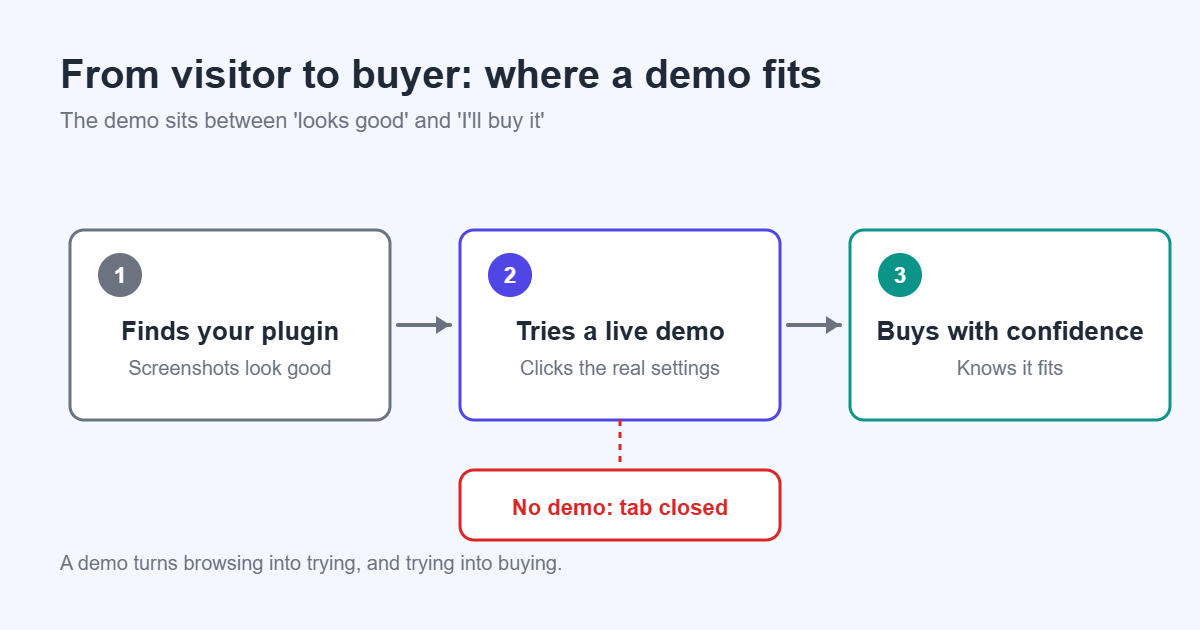
A live demo turns “trust me” into “try it.” That shift affects almost every number you care about as a plugin seller.
It builds trust before money changes hands
WordPress users have been burned before. Most have installed a plugin that looked great on its sales page and then turned out to be a confusing settings maze. A live WordPress demo removes that fear. When someone can test your plugin online without installing anything on their own site, the risk of buying drops to almost zero.
It lifts conversions
Buyers who have used a product are easier to convert than buyers who have only read about it. A demo answers the small, specific questions your copy can’t predict: “Can I change the popup position?” “Does the checkout field show on mobile?” Every answered question removes a reason to leave.
It keeps visitors engaged longer
A visitor scanning screenshots spends seconds. A visitor inside an interactive plugin demo often spends minutes. That time matters: they are learning your interface, building familiarity, and mentally moving your plugin onto their site.
It cuts pre-sales support
Many pre-sales emails are really “how does it work?” questions. A demo lets people answer those themselves. Your inbox gets lighter, and the questions that do arrive are sharper and more serious.
It sets you apart
Plenty of plugins in crowded categories (popups, forms, WooCommerce add-ons, SEO tools) still rely on screenshots alone. Offering a hands-on demo is a visible signal that you are confident in your product.
Pro Tip: Put your “Try the Live Demo” button right next to the “Buy” or “Download” button, not buried at the bottom of the page. The people most likely to use a demo are the ones already close to deciding.
The Problems with Traditional Plugin Demos
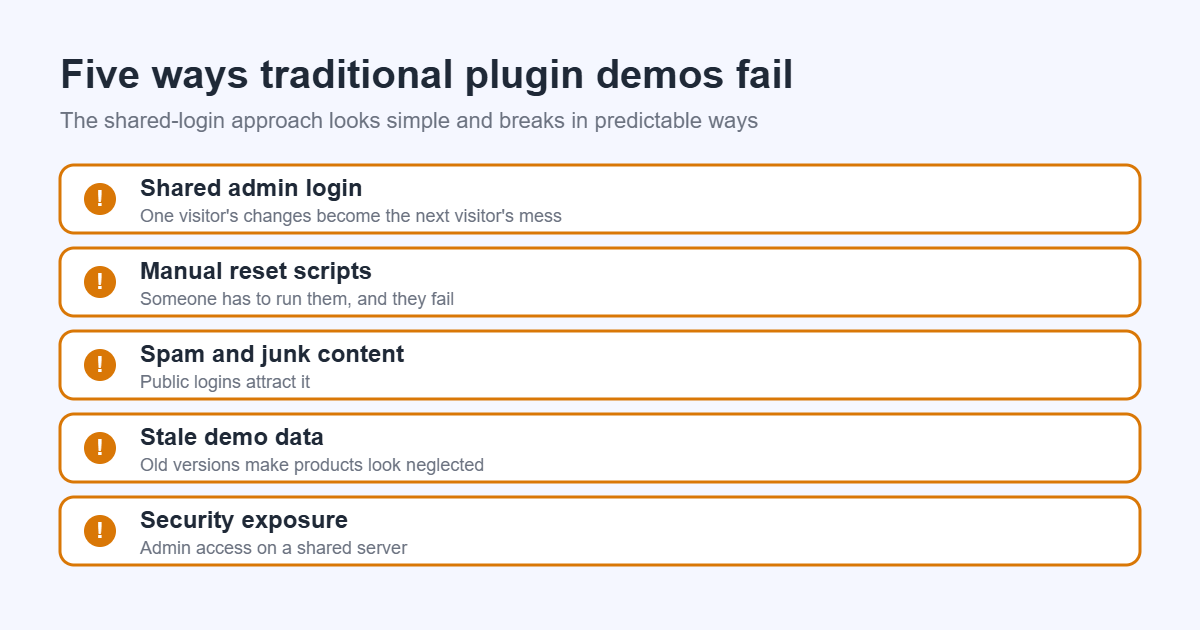
Most plugin developers try one or more of these approaches before moving to sandboxes. Each one works a little, and each one breaks in a predictable way.
Screenshots
Screenshots are cheap and fast, but they go stale with every UI update. They also hide the experience between screens: how many clicks a task takes, how fast settings save, and what happens when something goes wrong.
Video walkthroughs
Videos are great for showing a workflow, and you should still make them. But they are passive. The viewer can’t stop and try the one setting they care about. Re-recording after every release also gets old quickly.
A shared admin login
This is the classic “demo / demo” username on a public site. It feels interactive, but it is a maintenance trap:
- One visitor changes the settings, and the next visitor sees a broken demo.
- Someone uploads spam, deletes pages, or edits the homepage text to something you would not want a customer to see.
- You need to strip capabilities to stay safe, which means visitors can’t test the features that matter.
- You end up writing reset scripts and cron jobs just to keep it usable.
Warning: Never give public visitors an administrator login on a site that shares a server, database, or user table with anything important. One plugin or theme upload is all it takes to compromise the whole install.
Manually built demo sites
Some developers spin up a fresh site for each serious lead. It gives a great experience, but it doesn’t scale past a handful of prospects a week, and someone has to remember to delete those sites afterwards.
Third-party SaaS demo platforms
Hosted sandbox services solve most of the technical problems. The trade-offs are monthly fees that grow with traffic, the provider’s domain or branding in front of your customers, and your visitor data living on someone else’s platform. For a small plugin business, that bill can rival what the plugin earns in its first year.
| Demo method | Interactive | Safe for visitors | Low maintenance | Scales well |
|---|---|---|---|---|
| Screenshots | No | Yes | No (go stale) | Yes |
| Video walkthrough | No | Yes | No (re-record) | Yes |
| Shared admin login | Partly | No | No | Poorly |
| Manual demo sites | Yes | Yes | No | No |
| SaaS sandbox platform | Yes | Yes | Yes | Yes, at a cost |
| Self-hosted sandbox | Yes | Yes | Yes | Yes, on your hardware |
What Is a WordPress Sandbox Demo?
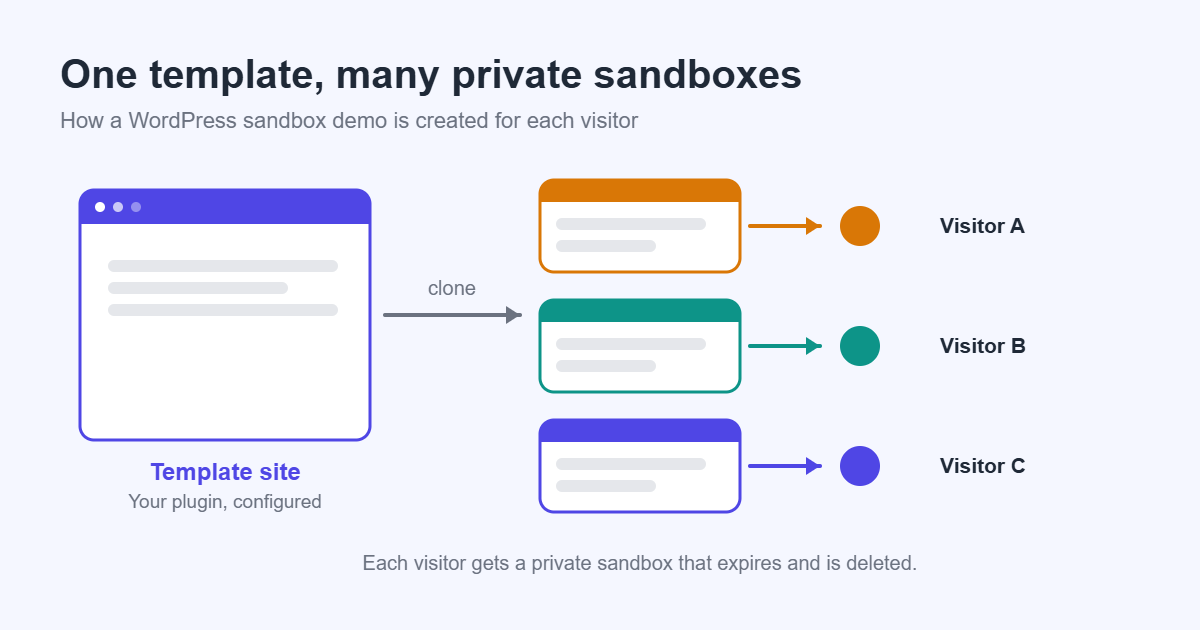
A WordPress sandbox demo is a temporary WordPress site created for a single visitor, on demand, and deleted automatically when their time is up.
Think of it like a hotel room. Every guest gets a freshly made-up room. They can rearrange the furniture, use everything, and make a mess. When they check out, housekeeping resets the room, and the next guest never sees what the last one did.
In WordPress terms:
- A visitor clicks “Try the Demo” on your website.
- A new temporary WordPress site is created, copied from a template you prepared.
- Your plugin is already installed, activated, and configured with sample content.
- The visitor is logged in automatically and can explore the admin and the front end.
- After a set time, the site and its data are deleted.
Because each visitor gets their own copy, nobody can break the demo for anybody else. You can give people real admin access to your plugin’s screens without worrying about the next visitor.
Best Practice: Design your template site so the first thing a visitor sees after login is your plugin’s main screen, not the generic WordPress dashboard. Every second spent hunting for the menu is a second they could be spending on your features.
How Sandbox Demos Work Behind the Scenes
Every sandbox demo follows the same short lifecycle, and the template site sits at the centre of it.
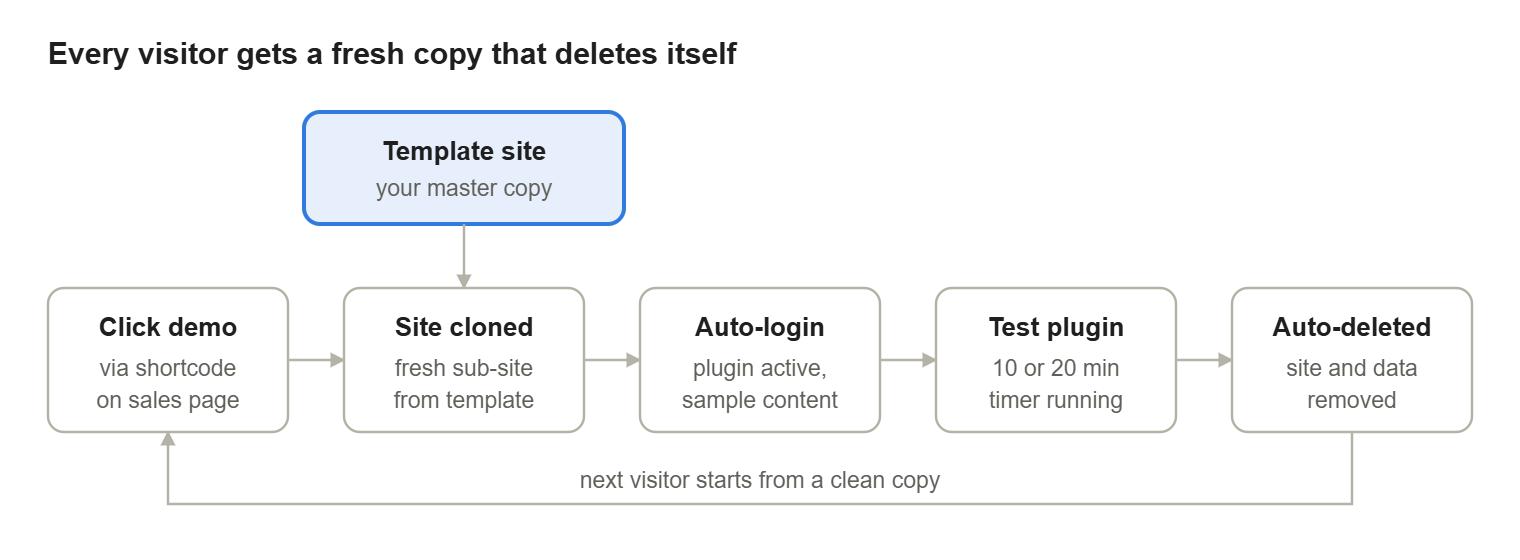
The template feeds every new sandbox; once the timer ends, the copy is removed and the next visitor starts clean.
1. The visitor clicks. They press a “Launch Demo” button on your sales page. Behind it is a request to your demo platform asking for a new sandbox.
2. A temporary site is created. On a WordPress Multisite network, the platform creates a new sub-site and copies the template’s database tables, settings, and uploads into it. This is far faster than installing WordPress from scratch.
3. Your plugin is ready. Because the copy includes the template’s active plugins and options, your plugin is already installed, activated, and configured. The visitor is logged in automatically with a role that can use it.
4. The visitor tests. They change settings, create content, and view the front end. Nothing they do touches the template or any other visitor’s site.
5. Auto-deletion. When the session expires, the sub-site, its database tables, and its uploaded files are removed. Your network stays clean without you lifting a finger.
Common Mistake: Editing the template while visitors are mid-demo and expecting their sandboxes to change. Existing sandboxes are independent copies. Template changes only reach visitors who launch a new demo.
Benefits of Self-Hosted Demo Platforms
A self-hosted WordPress demo runs on a server you already control. For many plugin businesses, that is the most sensible long-term setup.
Ownership. The demo sites, the template, and any visitor data stay on your infrastructure. If a vendor raises prices or shuts down, your demo keeps running.
Branding. Demos run on your own domain or subdomain, like demo.yourplugin.com. Visitors stay inside your brand from the sales page to the checkout.
Cost savings. You pay for hosting you probably already have. There is no per-demo or per-visitor fee, so a traffic spike from a Product Hunt launch or a big review doesn’t produce a surprise invoice.
Performance. You choose the server. Put the demo on hosting close to your audience, give it enough PHP workers, and tune caching yourself.
Flexibility. You decide which plugins and themes sit alongside yours, what sample content ships with it, and how the template is configured. Want WooCommerce with ten sample products? Add it to the template once.
Security. Your demo network can be fully isolated from your main website and store. You set the rules, and you are not trusting a third party with access to your licensed code.
Pro Tip: Use a separate hosting account or VPS for your demo network, not the same install that runs your store. If anything goes wrong in a sandbox, your revenue site is untouched.
Self-Hosted vs SaaS Demo Platforms
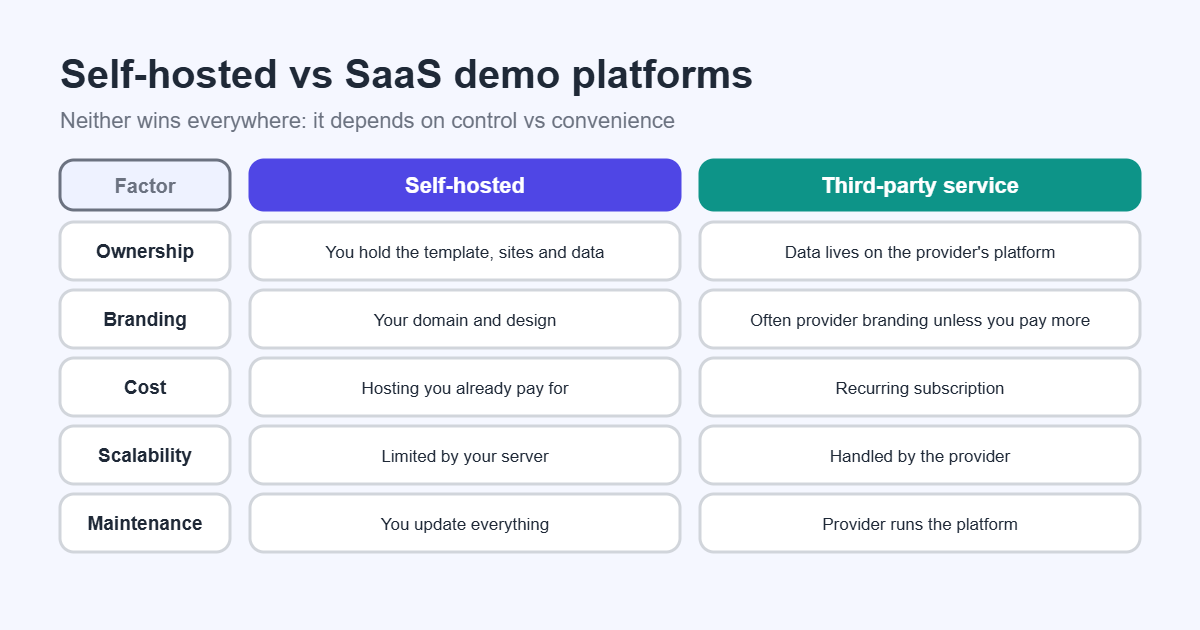
Neither option is wrong. SaaS platforms trade money for convenience; self-hosted tools trade a little setup time for control and lower long-term cost.
| Factor | Self-hosted (e.g. Easy WP Demo Builder) | SaaS demo platform |
|---|---|---|
| Pricing | Free plugin + hosting you already pay for | Monthly subscription, often tiered by demos or sites |
| Branding | Your domain, your design | Often the provider’s domain or branding unless you pay more |
| Ownership | You own the template, sites, and data | Data and setup live on the provider’s platform |
| Scalability | Limited by your server; you upgrade when needed | Handled by the provider, priced accordingly |
| Performance | You choose and tune the hosting | Depends on the provider’s shared infrastructure |
| Customization | Full control over plugins, themes, content, and code | Limited to what the dashboard exposes |
| Maintenance | You keep WordPress, plugins, and the server updated | Provider handles the platform; you maintain the template |
If you sell one or two plugins, already run a VPS, and are comfortable with WordPress Multisite, self-hosting usually wins. If you manage dozens of products and never want to think about servers, a paid platform may be worth it.
Step-by-Step: Build a WordPress Plugin Demo with Easy WP Demo Builder
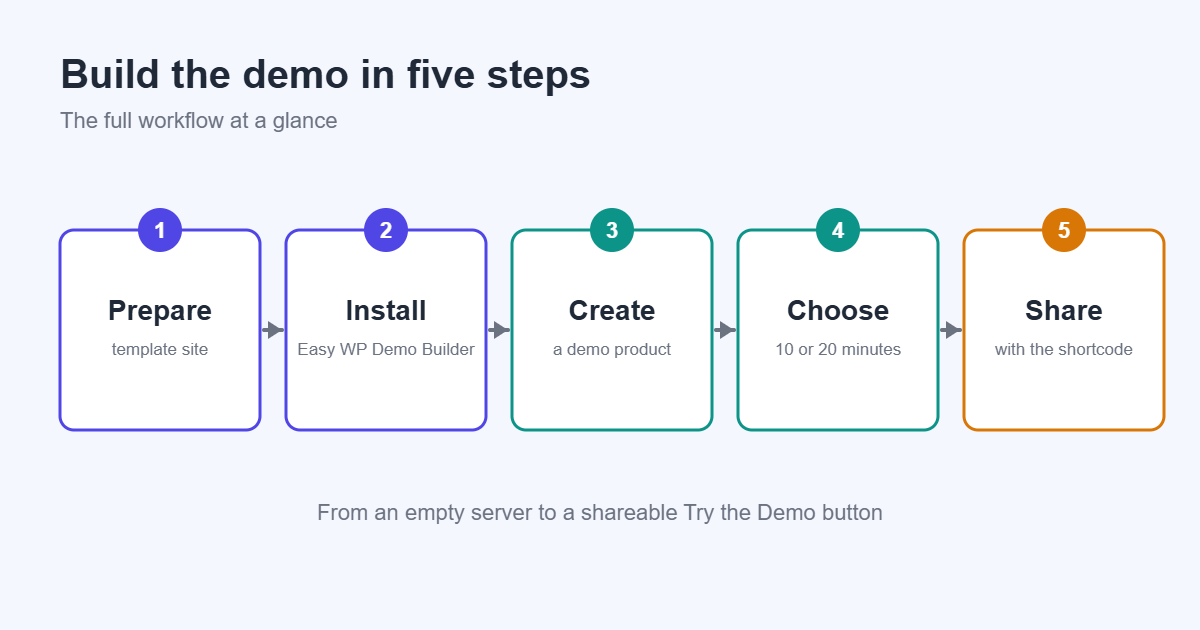
Easy WP Demo Builder is a free WordPress plugin that turns a WordPress Multisite network into a self-hosted demo platform. Each visitor gets their own temporary sandbox site, cloned from a template you prepare, and it is removed automatically when the session ends.
Here is the full workflow, from an empty server to a shareable “Try the Demo” button.
Before you start: requirements
| Requirement | Why it matters |
|---|---|
| WordPress Multisite network | Each sandbox is a sub-site on the network |
| Network Admin (Super Admin) access | Easy WP Demo Builder is configured from Network Admin |
| A dedicated domain or subdomain | Keeps demos separate from your main store, e.g. demo.yourplugin.com |
| Hosting with spare resources | Every active visitor is a live WordPress site using PHP and database time |
| Your plugin’s ZIP and any companion plugins | They go into the template site |
Common Mistake: Installing the demo network inside your live store’s WordPress install. Converting a production site to Multisite is risky and mixes demo traffic with real customers. Start with a fresh install.
Step 1: Prepare your template site
The template site is the “master copy” every visitor’s sandbox is cloned from. Treat it like a product, because to the visitor, it is the product.
- Create a new sub-site on your network to act as the template.
- Install and activate your plugin, plus anything it depends on (WooCommerce, a page builder, a specific theme).
- Configure your plugin with sensible settings that show it at its best, not factory defaults.
- Add realistic sample content: products, posts, orders, form entries, whatever your plugin acts on.
- Remove clutter: default “Hello World” posts, unused plugins, admin notices that distract.
- Test the front end. Make sure your plugin’s output is visible on the pages a visitor will check.
Pro Tip: If your plugin works with WooCommerce, add a handful of products with real-looking images and prices. A popup that says “Someone in Dhaka just bought Sample Product 1” looks far less convincing than one with a believable product name.
Step 2: Install Easy WP Demo Builder and create a demo product
Install Easy WP Demo Builder and network-activate it from Network Admin → Plugins. Then open its settings in Network Admin and create a Demo Product: the link between a template site and the demos visitors launch.
Give the demo product a clear name and a slug (for example, my-plugin), and point it at the template site you just prepared. The free version supports up to two independent demo products per network, which is enough to demo a main plugin and an add-on, or two separate plugins.
Step 3: Configure demo expiration
Next, choose how long each sandbox lives. Easy WP Demo Builder offers 10-minute and 20-minute demo sessions. The countdown starts once the visitor’s sandbox is active, so time spent creating the site doesn’t eat into their session.
How to choose:
- 10 minutes suits focused plugins with one main screen: a share button, a popup, a single widget.
- 20 minutes suits plugins with more to explore: multi-step setups, WooCommerce extensions, anything with several settings tabs.
Shorter sessions also mean fewer simultaneous live sites on your server, which keeps the demo fast for everyone.
Step 4: Share the demo
Place the demo launcher on any page with the shortcode, using your demo product’s slug:
[easy_wp_demo_builder demo_product="my-plugin"]Good places for it:
- Your plugin’s sales or landing page, next to the download or buy button
- Your documentation, so readers can try a feature while reading about it
- Launch emails and social posts, linking to the page that holds the shortcode
The “Demo powered by Easy WP Demo Builder” credit is off by default; you can switch it on in Network Admin if you want to support the project.
Step 5: Manage demos
Once the demo is live, the job becomes keeping it healthy:
- Watch active sandboxes from Network Admin so you know how much load the network is under.
- Let expiry do the cleanup. Expired sandboxes are deleted automatically, so the network doesn’t fill with abandoned sites.
- Update the template, not the sandboxes. When you release a new plugin version, update the template site. New visitors get the new version; old sandboxes simply expire.
- Retest after every change. Launch a demo yourself as a logged-out visitor and walk the full path.
Best Practices for Live WordPress Demos
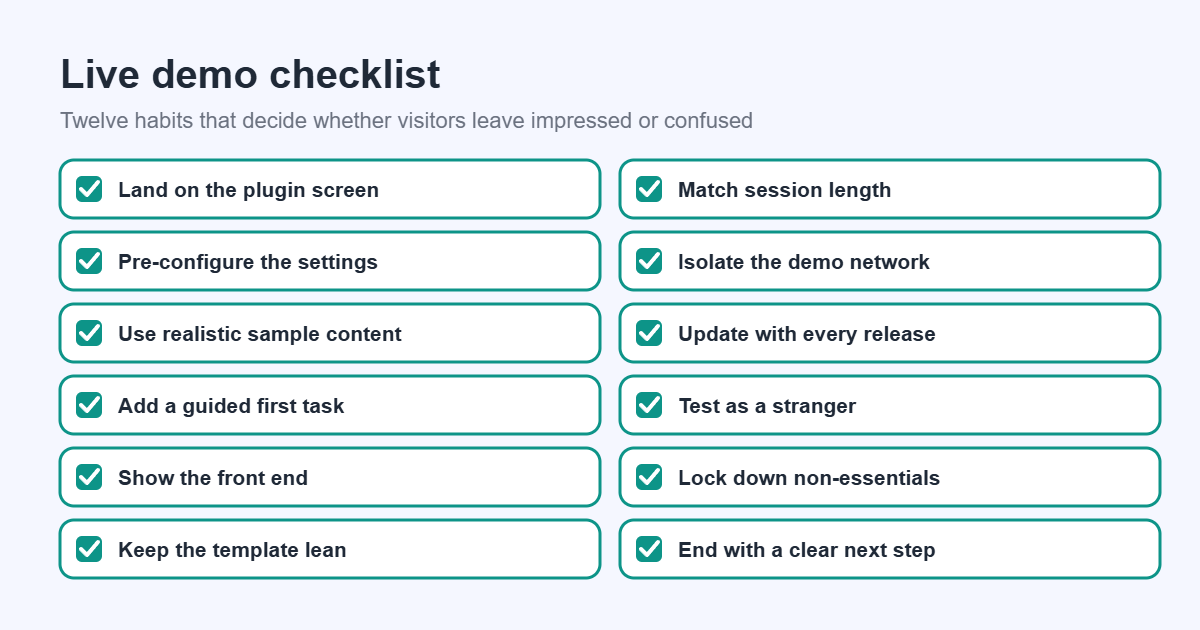
A demo platform is only half the job. These habits come from running real plugin demo sites, and they decide whether a visitor leaves impressed or confused.
- Land visitors on your plugin, not the dashboard. Redirect the login to your plugin’s main screen. The generic WordPress dashboard tells them nothing about your product.
- Pre-configure for the “wow” moment. Ship settings that show the plugin working immediately. An empty settings page asks the visitor to do work before they see value.
- Use realistic sample content. Real-looking products, posts, and orders make output believable. Lorem ipsum makes everything look like a prototype.
- Add a short guided path. A small admin notice like “Start here: open Settings → Layout and switch to the floating bar” gives visitors a first task.
- Show the front end too. Add an obvious “View your site” link. Many buyers care more about what their visitors will see than about your settings screens.
- Keep the template lean. Only install what your plugin needs. Every extra plugin slows cloning and adds things to break.
- Match the session length to the plugin. A simple plugin doesn’t need 20 minutes; a complex one feels rushed at 10.
- Isolate the demo network. Run it on its own domain, database, and ideally its own server, away from your store and customer data.
- Keep the template updated. Update WordPress, your plugin, and companion plugins on the template the same day you ship a release.
- Test as a stranger. Regularly open the demo in a private window, on mobile, and on a slow connection. That is how your buyers see it.
- Lock down what doesn’t matter. Visitors should be able to use your plugin freely, but they don’t need to install plugins, edit theme files, or manage users.
- Follow up after the demo. End the experience with a clear next step: a pricing page, a download link, or a discount for people who tried it.
| Best practice | Effort | Impact on conversions |
|---|---|---|
| Land on plugin screen | Low | High |
| Pre-configured settings | Low | High |
| Realistic sample content | Medium | High |
| Guided first task | Low | Medium |
| Front-end link | Low | Medium |
| Lean template | Low | Medium |
| Right session length | Low | Medium |
| Isolated network | Medium | Indirect (safety) |
| Template updates | Low, recurring | Medium |
| Test as a stranger | Low, recurring | High |
| Lock down non-essentials | Medium | Indirect (safety) |
| Post-demo next step | Low | High |
Best Practice: Keep a short launch checklist for the template site and run through it after every plugin release. It takes five minutes and prevents the embarrassing “the demo shows the old version” email.
Common Mistakes to Avoid
1. Using a production site as the demo host. Converting your live store to Multisite or running demos beside customer data adds risk for no benefit. Use a separate install.
2. Shipping an empty template. If the visitor sees your plugin with no data, they have to imagine the result. Most won’t bother. Fill the template with content your plugin can act on.
3. Forgetting the front end. Developers often polish the admin and forget that buyers want to see the output. Check every page a visitor might open.
4. Letting the template fall behind. A demo running last year’s version, with a “please update” notice at the top, undermines trust. Tie template updates to your release process.
5. Under-sizing the server. Each active sandbox is a real WordPress site. If your hosting struggles with two sites, it will struggle with ten curious visitors after a newsletter goes out. Load test before a launch.
6. Hiding the demo link. A demo buried in the footer or docs gets little use. Put it next to your main call to action.
7. Giving visitors too much power. Visitors don’t need to install plugins, edit theme files, or create users. Keep their access focused on what you are demonstrating.
8. Leaving admin notices and nags in the template. Update prompts, “rate us” banners, and setup wizards from other plugins distract from your product. Dismiss them before you save the template.
9. Never testing the demo yourself. If you haven’t launched your own demo as a logged-out visitor this month, you don’t really know what buyers see.
10. Treating the demo as a one-time project. A demo is part of your product. It needs the same care as your readme and screenshots.
Warning: Don’t put real API keys, license keys, or SMTP credentials in your template site. Every sandbox is a copy of the template, so anything stored there is visible to every visitor.
Frequently Asked Questions
1. What is the easiest way to build a WordPress plugin demo?
For most developers, the easiest route is a sandbox tool running on WordPress Multisite. You prepare one template site with your plugin configured, and the tool creates a fresh copy for each visitor. Easy WP Demo Builder does this for free on your own server.
2. Do I need WordPress Multisite?
For Easy WP Demo Builder, yes. Each visitor’s sandbox is a sub-site on a Multisite network, which is what makes cloning and cleanup fast. If you have never set up Multisite, start with a fresh install on a dedicated subdomain rather than converting an existing site.
3. Is a self-hosted WordPress demo secure?
It can be very secure if you isolate it. Run the demo network on its own domain and database, keep secrets out of the template, limit what visitors can do outside your plugin, and keep WordPress updated. The sandbox model helps too: each visitor only ever touches their own temporary site.
4. How long should a demo session last?
Long enough to reach the “aha” moment and no longer. Ten minutes works for simple plugins; twenty minutes suits WooCommerce extensions and plugins with several settings screens. Shorter sessions also reduce server load.
5. What happens to a sandbox when time runs out?
The temporary WordPress site and its content are deleted automatically. The next visitor gets a fresh copy of the template, untouched by anyone before them.
6. Can I demo a WooCommerce extension?
Yes. Install WooCommerce on the template site, add sample products (and orders, if your plugin uses them), configure your extension, and every sandbox will include the full store setup.
7. How much server power do I need?
It depends on how many visitors run demos at the same time. Each active sandbox is a live WordPress site. A small VPS handles occasional demos comfortably; plan for more resources before a launch, a big newsletter, or a sale. Load test with several simultaneous demos before you promote the link widely.
8. Can I demo more than one plugin?
Yes. Easy WP Demo Builder’s free version supports up to two independent demo products on one network, each with its own template site and shortcode. That covers a main plugin plus an add-on, or two separate products.
9. Will visitors see branding from the demo tool?
Not unless you choose to show it. The “Demo powered by Easy WP Demo Builder” credit is opt-in and off by default. Your demos run on your own domain with your own design.
10. Should I still make screenshots and videos?
Yes. Screenshots help people decide whether to try the demo, and videos guide people who prefer to watch first. A live demo works best as the next step after them, not a replacement for them.
Final Thoughts
Buyers don’t want to imagine how your plugin works. They want to click it. A live demo gives them that, and a sandbox demo does it without the broken settings, spam, and reset scripts that come with a shared admin login.
The pieces are simple: a clean template site, sensible session lengths, a demo link placed where buyers decide, and a habit of testing it like a stranger would. Whether you use a SaaS platform or your own server, those fundamentals decide how well the demo sells.
If you already run a VPS and want to keep control of your branding, data, and costs, self-hosting is hard to beat.
Try Easy WP Demo Builder
Easy WP Demo Builder was built for exactly this setup: a free plugin that turns a WordPress Multisite network into a self-hosted sandbox demo platform. Prepare your template, create a demo product, choose a 10- or 20-minute session, and drop the shortcode on your sales page.
If you’ve been putting off a live demo because SaaS pricing didn’t fit or the shared-login approach felt fragile, give it a try on a test subdomain this week. Launch your own demo as a visitor, watch what you click first, and you’ll learn a lot about how buyers see your plugin.