
What Is a WordPress Sandbox?
You found a plugin that looks perfect. The screenshots are clean, the reviews are good, and it does exactly what you need.
But installing it on your live website feels risky.
That hesitation is reasonable. A plugin can slow a site down, clash with your theme, or break the checkout page on a store that is taking orders. A theme can change how every page looks. A snippet from a forum can take a site offline with one missing bracket. Most site owners have either lived through one of these moments or heard a story about one.
So people do one of two things. They skip the plugin, or they install it and hope. A WordPress sandbox gives you a third option: try it somewhere that doesn’t matter first.
This guide explains what a WordPress sandbox is, how it works, how it differs from staging, local development, and WordPress Playground, and how to use one well, whether you run a blog, a WooCommerce store, an agency, or a plugin business.
What Is a WordPress Sandbox?
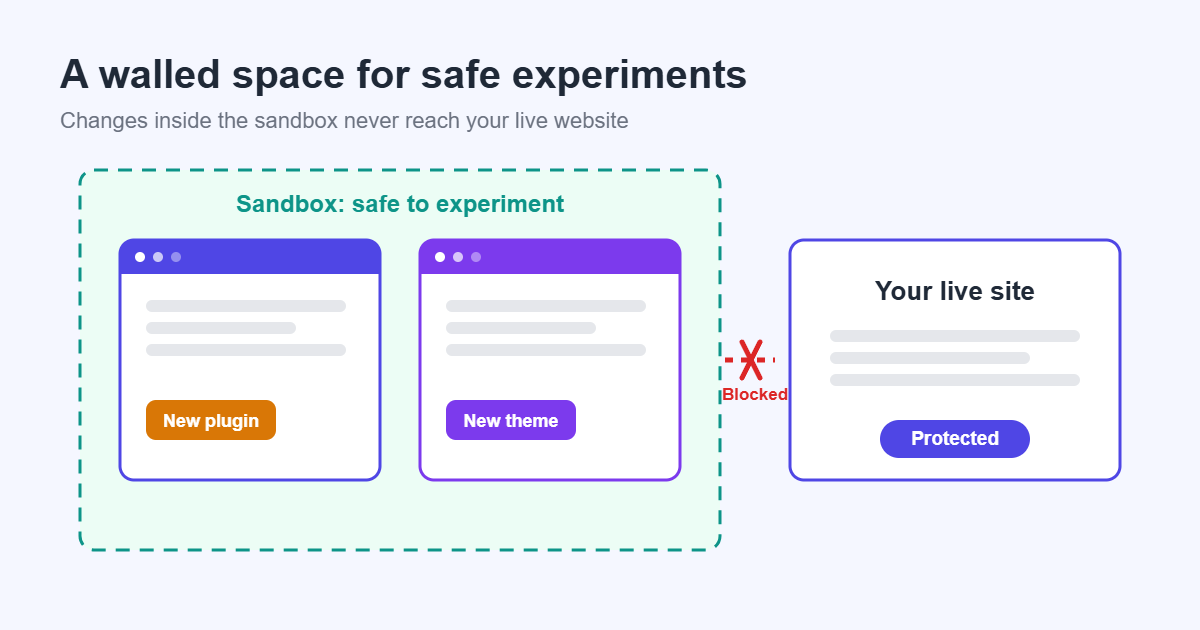
A WordPress sandbox is an isolated, disposable WordPress site where you can install, test, and break things without affecting a real website.
The simple version: it is a practice copy of WordPress, a kind of WordPress sandbox environment. You can do anything you like inside it, and when you’re done, you throw it away.
The technical version: a sandbox is a separate WordPress installation, with its own database tables, its own uploads folder, and its own URL. Nothing inside it reads from or writes to your production site. Depending on the setup, it can be a full standalone install, a sub-site on a Multisite network, or a copy that runs inside a browser tab.
Why is it called a sandbox?
The name comes from the children’s play area. A sandbox has walls. Inside, children can dig, build, and knock things down. Outside, the garden stays untouched.
A WordPress sandbox works the same way. The “walls” are the isolation between the sandbox and everything else. You can install a risky plugin, delete the homepage, or run a bad line of code. The worst outcome is a broken sandbox, and a broken sandbox costs nothing to replace.
The word is used in software generally, for any environment where code can run without touching the real system. In WordPress, you will also hear it called a temporary WordPress site, a WordPress testing environment, or a WordPress demo site. These overlap, and we’ll sort out the differences below.
How Does a WordPress Sandbox Work?
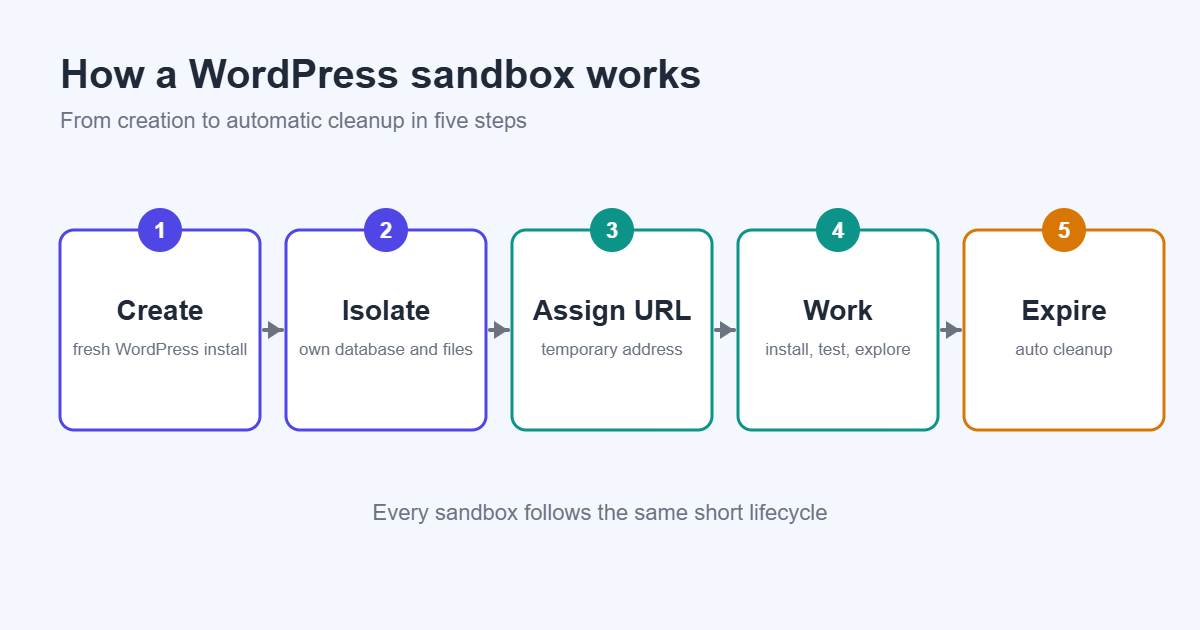
Different sandbox tools work in different ways, but most follow the same pattern. Here is the process step by step.
- A fresh WordPress installation is created. This may be a full install on a server, a new sub-site on a Multisite network, or WordPress running inside the browser. It starts clean or from a template.
- The environment is isolated. The sandbox has its own database tables (or its own database) and its own file area for uploads. One sandbox can’t see another, and none of them can see your live site.
- A temporary URL is assigned. You get an address such as
demo-1234.example.comor a link you can open in a browser. Some are public, some are protected by a password or a one-time link. - You work inside it. Install plugins, switch themes, import sample content, change settings, and test checkout flows. It behaves like normal WordPress because it is normal WordPress.
- The sandbox expires. After a set time, or when you close it, the sandbox and its data are deleted. Cleanup is automatic, so nothing builds up.
Here is the same idea as a simple picture:
| Layer | Your live site | Sandbox |
|---|---|---|
| Database | Real customers, orders, posts | Its own tables, fresh or sample data |
| Files | Real uploads and themes | Its own uploads, copied or empty |
| URL | yourstore.com | A temporary address |
| Lifespan | Permanent | Minutes, hours, or days |
| Risk if something breaks | High | None to your real site |
Isolation is the whole point
The most important idea is isolation, and it is what makes a sandbox a safe WordPress testing environment. If the sandbox shared a database with your live site, a mistake inside it could still hurt you. Real sandboxes keep the two completely separate, which is why you can try things you would never try on a production site.
Why Use a WordPress Sandbox?
People use sandboxes for many reasons. These are the most common.
- Plugin testing. See whether a plugin does what it says before installing it on your real site. This is the classic use case.
- Theme testing. Preview a premium theme with your content type in mind. Check mobile layouts, the header, and the blog page.
- Trying WooCommerce extensions. Payment gateways, shipping rules, and subscription tools touch real money. A WooCommerce sandbox lets you run test orders safely.
- Learning WordPress. Beginners can click everything without fear of breaking their own site.
- Debugging. Reproduce a bug in a clean environment to find out whether the plugin, the theme, or your content causes it.
- Client demonstrations. Agencies show a client what a feature will look like before building it on their live site.
- Product showcases. Plugin and theme sellers let customers try the product before buying.
- Experimenting safely. Try a new page builder, test a code snippet, or check a major update, with no pressure.
All of these share one thing: the cost of a mistake is zero.
Who Uses WordPress Sandboxes?
Sandboxes are not only for developers. Here is how different people use them in practice.
Beginners use a sandbox to learn the dashboard. Where are the menus? What does a plugin actually do after you activate it? A practice site removes the fear of clicking the wrong thing.
Bloggers test new themes, widgets, and SEO or caching plugins before touching the site their readers see.
WooCommerce store owners use a sandbox to test checkout changes, shipping zones, and coupon rules. A broken checkout on a live store costs money every minute.
Developers try new code, test compatibility with different PHP versions, and reproduce bugs reported by users.
Agencies build prototypes for clients, test updates across common plugin combinations, and let clients approve a design before it goes live.
Plugin authors offer a hands-on demo on the sales page, and test their own releases against a clean WordPress install.
Theme companies show their themes with demo content, so buyers can judge the design in a real admin screen rather than a screenshot.
Support teams reproduce a customer’s problem in a clean environment. If it works there, the cause is probably in the customer’s own setup.
QA testers run test plans on a fresh site every time, so leftovers from earlier tests don’t affect results.
Educators give each student their own WordPress site for a class, with nothing to install on their computers.
WordPress Sandbox vs Staging Site
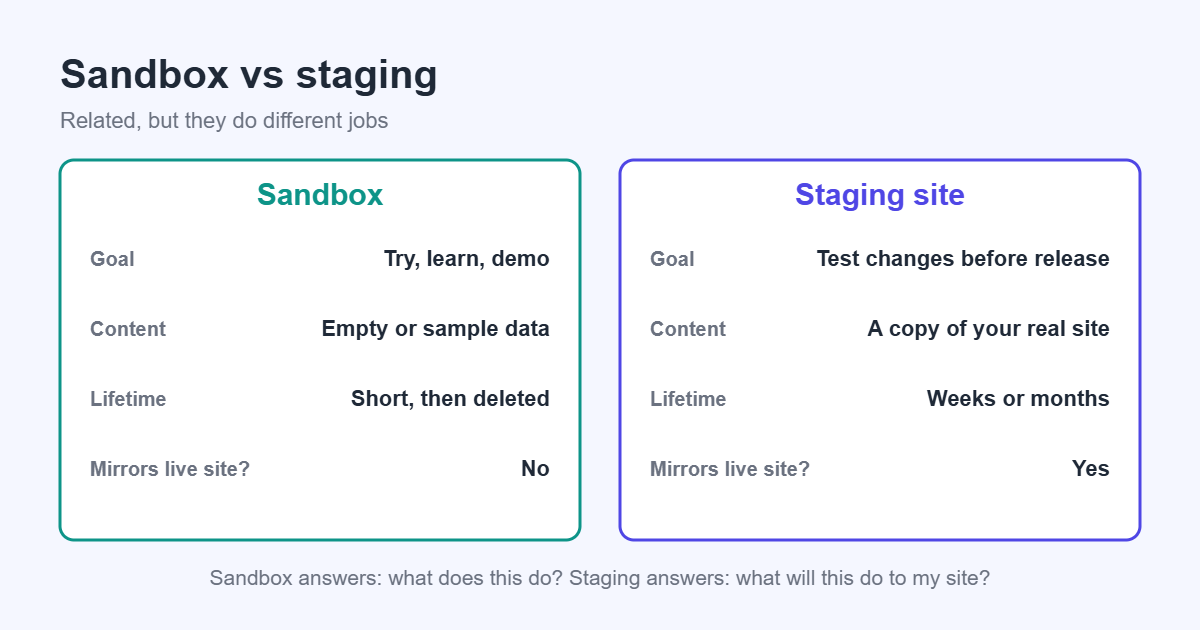
These two are often confused. They are related, but they do different jobs.
A WordPress staging site is a copy of your real website, used to test changes before pushing them live. It usually contains your actual content, theme, and plugins, so it shows exactly how an update will behave on your site. Many hosts offer one-click staging.
A sandbox is a general-purpose practice site. It may be empty, contain sample data, or be built from a template. It isn’t meant to mirror your live site.
| Sandbox | Staging site | |
|---|---|---|
| Purpose | Experiment, learn, demo, test | Test changes to a specific live site before release |
| Lifetime | Usually temporary | Usually kept for weeks or months |
| A real website? | No, a throwaway site | A copy of your real site |
| Safe for experiments? | Yes, anything goes | Yes, but changes are meant to be pushed live |
| Temporary? | Typically yes | No, it persists |
| Search engine indexing | Should be blocked | Should be blocked |
| Data persistence | Deleted at the end | Kept, and sometimes synced with live |
| Performance | Often lightweight, not a performance test | Closer to the live site’s real behavior |
When to use which
- Use a sandbox when you want to try a plugin, learn, demo a product, or reproduce a bug in a clean WordPress.
- Use staging when you are about to update a live site and want to see how your actual content and plugins react.
Think of it this way: a sandbox answers “what does this do?”, while staging answers “what will this do to my site?”
WordPress Sandbox vs Local Development
Local development means running WordPress on your own computer. Popular tools include LocalWP, XAMPP, Laragon, and DevKinsta. They create a full local server, and the site is only visible on your machine.
| Tool | What it is | Good for | Drawbacks |
|---|---|---|---|
| LocalWP | A desktop app that creates WordPress sites in a few clicks | Beginners and freelancers who want an easy local setup | Needs an install; sites live on your computer |
| XAMPP | A bundle of Apache, MySQL, and PHP | Developers who want full control of the stack | Manual WordPress setup and more configuration |
| Laragon | A fast local server for Windows | Windows developers who run many projects | Windows-focused; some setup knowledge helps |
| DevKinsta | A local WordPress tool from a hosting company | People who later host on the same provider | Designed around its own host’s workflow |
| Online sandbox | A temporary site you open from a link | Quick tests, demos, sharing with others | Temporary; limited by the tool’s settings |
When to use each
- Local tools for building and long development work.
- A sandbox for fast tests, learning, and demos.
- Many developers use both: a local site for building, a sandbox for sharing and testing against a clean install.
WordPress Sandbox vs WordPress Playground
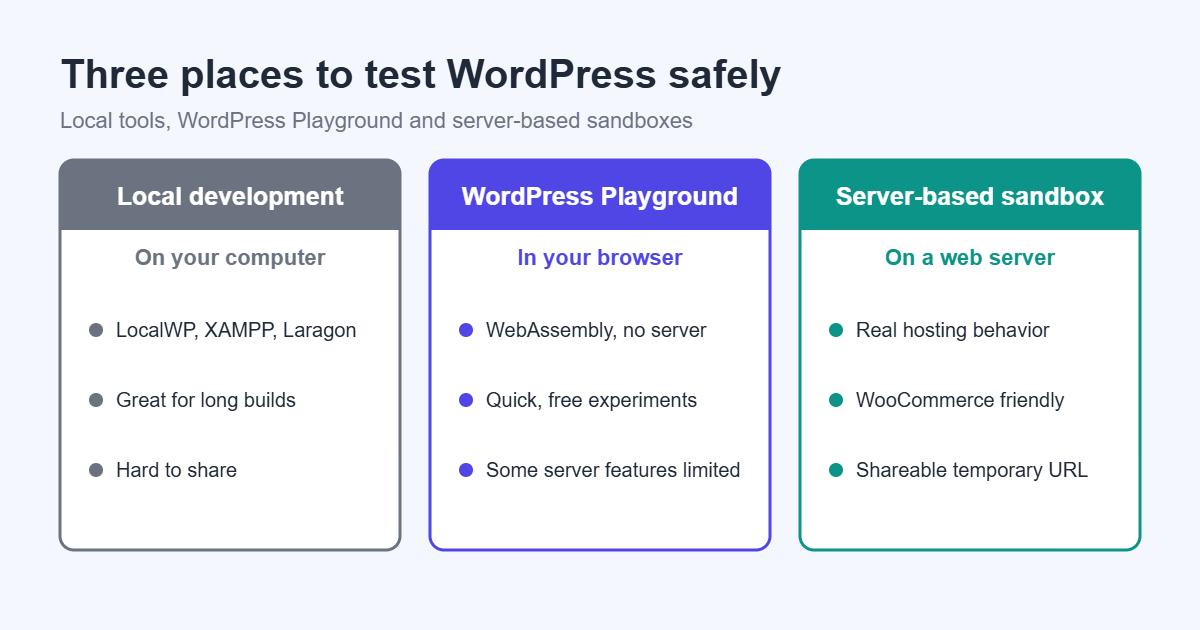
WordPress Playground is an official project that runs WordPress entirely inside your web browser. There is no server. According to the WordPress Playground documentation, it uses WebAssembly to run WordPress and PHP in the browser, with nothing to install and no login required.
It is a sandbox in the broad sense: a disposable WordPress you can open from a link. But it works differently from a traditional server-based sandbox.
| WordPress Playground | Server-based sandbox | |
|---|---|---|
| Where it runs | In your browser | On a server |
| Setup | A link, no account | A tool or plugin on a server |
| Data | Held in the browser | Held on the server, then deleted |
| Sharing | Via a link with a configuration | Via a temporary URL |
| Server resources | None needed | Uses server CPU and database |
| Limits | Some features that need a real server may not work | Behaves like a normal WordPress host |
Advantages of Playground
- Starts quickly and costs nothing to run.
- Perfect for trying a theme or a simple plugin, and for sharing a reproducible example.
- Useful in documentation and tutorials, since a reader can try the steps with one click.
Limitations
- It runs in the browser, so features that depend on a real server or outside connections, such as some email, payment, or background tasks, may not behave as they would on a host.
- Data stays in the browser rather than a persistent site, so it isn’t suited to long-lived work.
- Very heavy plugins or large imports may feel slow in a browser.
Use cases
Playground works well for quick experiments, teaching, bug reports, and demos of simpler products. A server-based sandbox is better when you need behavior that matches a real hosting environment, such as WooCommerce flows, scheduled tasks, or large sample sites. Neither is better in every case. They solve slightly different problems.
Different Types of WordPress Sandboxes
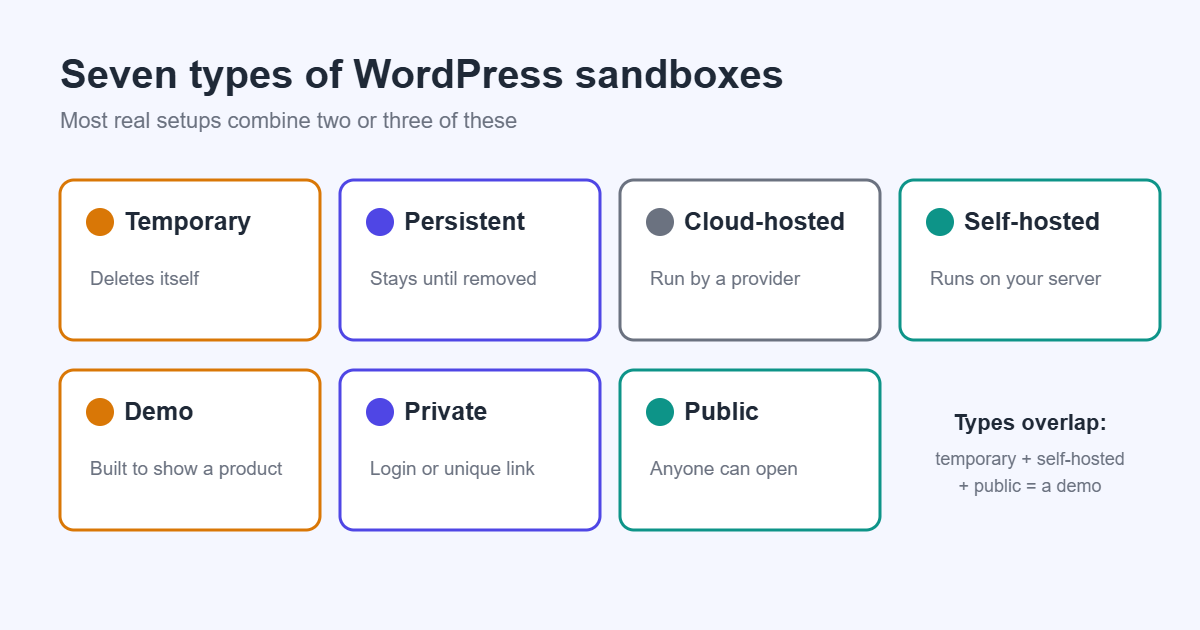
“Sandbox” covers several setups. Here are the main types.
Temporary sandbox
A site that exists for a short time, then deletes itself. Good for quick tests and demos.
Persistent sandbox
A practice site that stays until you remove it. Useful for learning, long experiments, or team testing where you don’t want to start over every day.
Cloud-hosted sandbox
A sandbox run by a third-party service. You sign up, click a button, and get a site. Easy to start, but you depend on the provider’s terms, limits, and pricing.
Self-hosted sandbox
A sandbox you run on your own server, often using WordPress Multisite and a plugin that creates and removes sub-sites on demand. You control the domain, the data, and the rules. It takes more setup but suits people who want ownership and privacy.
Demo sandbox
A sandbox built to show a product, such as a plugin or theme, to visitors. It usually comes pre-configured with sample content and a guided first step.
Private sandbox
A sandbox only you, or invited people, can open. It is protected by a login, a password, or a unique link.
Public sandbox
A sandbox anyone can open, such as a “Try the demo” button on a product page. Each visitor should get their own private copy, so they don’t see each other’s changes.
These types overlap. A self-hosted, temporary, public demo sandbox is one common combination.
Benefits of Using a Sandbox
Here is what a sandbox gives you in practice.
Safe testing. You can try risky changes without worry. If something breaks, close the sandbox and start again.
No risk to your production site. Your real database, files, and customers stay untouched.
Faster troubleshooting. A clean WordPress with one plugin makes causes easier to find.
Better customer experience. For sellers, a sandbox lets buyers try a product instead of guessing from screenshots. They feel more informed.
Easier product evaluation. Comparing three form plugins is much easier when you can click through all three.
Better training. New team members and students can practice on a real dashboard.
Higher conversions. When buyers can try before buying, they have fewer doubts. Results differ from product to product.
Reduced support requests. People who have already tried the settings ask fewer basic questions and request fewer refunds.
Better collaboration. A sandbox link can be shared with a colleague or client, so everyone looks at the same thing.
Common Use Cases
Here are practical situations where a sandbox saves time.
“I want to test a WooCommerce payment gateway.” Create a WooCommerce sandbox, install the gateway in test mode, add a sample product, and run a test checkout. You see how it behaves without risking a real transaction.
“I want to preview a premium theme.” Install the theme in a sandbox, import its demo content, and check the layouts you care about, such as your blog, your shop, and mobile.
“I want to let customers try my plugin.” Offer a demo link that creates a private sandbox with your plugin pre-configured. Each visitor tries it in their own copy.
“I need to reproduce a bug.” Start with a clean WordPress, add the plugin, and follow the user’s steps. If the bug appears, it is the plugin. If it doesn’t, ask about their theme and other plugins.
“I teach WordPress.” Give each student a sandbox link at the start of a lesson. Nobody installs anything, and everybody starts from the same point.
Are WordPress Sandboxes Secure?
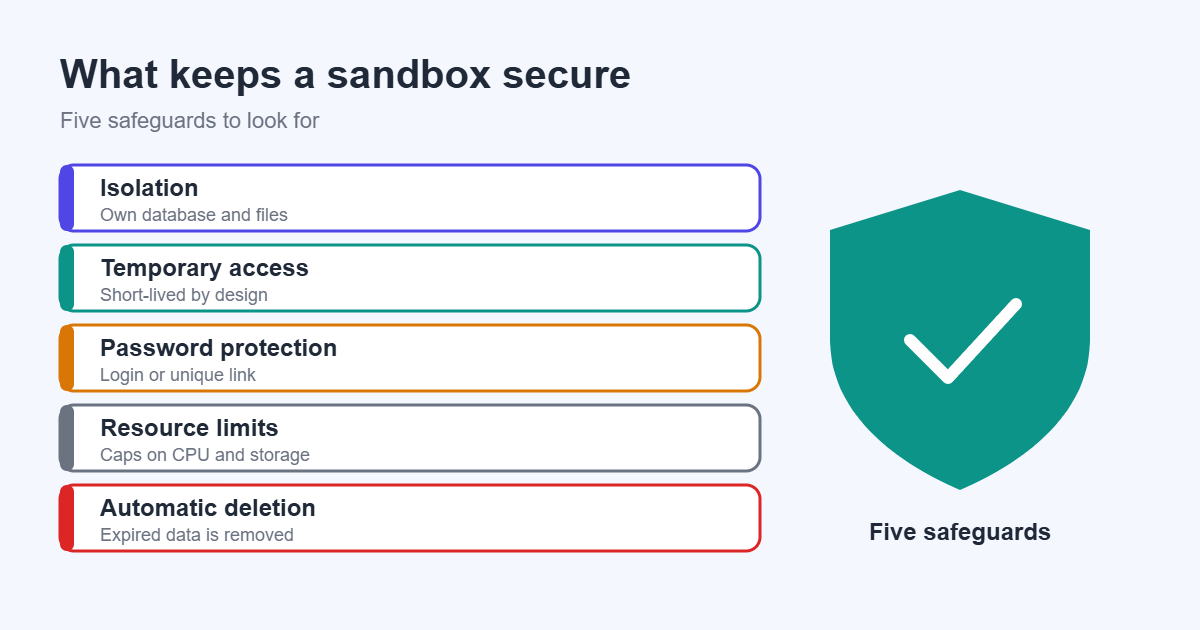
A well-built sandbox is safe for your live site, because of isolation. But “secure” depends on how it is set up, so it helps to know what to look for.
- Isolation. Each sandbox should have its own database tables and files, and no access to your production data. This is the key protection.
- Temporary access. Short-lived sandboxes reduce the window in which anything can go wrong.
- Password protection. Private sandboxes should need a login or a unique link.
- Resource limits. Without limits, one visitor could use too much CPU, storage, or memory. Good setups limit the number of live sandboxes and their size.
- Automatic deletion. Expired sandboxes should be removed, along with their data, so old sites don’t pile up.
- Privacy. Don’t put real customer data, API keys, or license keys into a template. Everything in a template is copied into every sandbox.
A few more precautions: block search engines from indexing sandbox sites, keep WordPress and plugins on the host updated, and run public demos on a separate domain from your main business site.
Sandboxes are safe for experiments, but they are not a place to store anything important. Treat them as disposable.
What Makes a Good WordPress Sandbox?
Not all sandboxes are equally useful. Look for these qualities.
- Fast creation. If it takes minutes to start, people leave.
- Automatic cleanup. Old sandboxes should delete themselves.
- Private environments. Each user gets their own site, not a shared one.
- Easy sharing. A simple link that anyone can open.
- One-click launch. No forms, no long signup.
- Fresh database. Every new sandbox starts from a known, clean state.
- HTTPS. Secure connections are the normal expectation today.
- A real WordPress installation. If it is not real WordPress, results may not match your live site.
- WooCommerce compatibility. If you sell products, the sandbox should run a store properly, including carts, orders, and emails.
If you are choosing between tools, compare them against this list.
A word on self-hosted setups
Some site owners and plugin sellers prefer to run their sandboxes on their own server rather than rely on a third-party service. A common approach is to use WordPress Multisite, where each sandbox is a sub-site cloned from a template and deleted when it expires. This gives you control over branding, data, and cost, and the trade-off is that you manage the server. Some WordPress plugins are built to automate this kind of setup. Whether self-hosted or third-party is better depends on how many demos you run, how much control you need, and how comfortable you are with server management.
Best Practices
These habits will help you get the most from a sandbox.
- Never test on production first. Try changes in a sandbox, then repeat them on the live site once you trust them.
- Keep demos temporary. A short lifespan keeps things clean.
- Reset regularly. Fresh sandboxes prevent leftovers from confusing your results.
- Protect customer data. Never copy real customer records into a public sandbox.
- Limit access. Give people only the permissions they need to try the feature.
- Use realistic demo content. Real-looking products and posts make a test more meaningful than “Lorem ipsum.”
- Block search engines. You don’t want test pages appearing in Google.
- Keep a backup of your real site anyway. A sandbox lowers risk but doesn’t replace backups. The WordPress backup guide covers the basics.
Frequently Asked Questions
What is a WordPress sandbox?
A WordPress sandbox is an isolated, disposable WordPress site used for testing, learning, and demonstrations. Nothing you do inside it affects your real website.
Is a WordPress sandbox free?
It depends on the tool. Some options, such as WordPress Playground, are free to use. Others are paid services, and self-hosted setups cost whatever your hosting costs. Check the terms of the specific tool you choose.
Is a sandbox different from staging?
Yes. A staging site is a copy of your real website, used to test changes before they go live. A sandbox is a general-purpose practice site that does not need to mirror your live site.
Can Google index sandbox sites?
It shouldn’t. Sandbox sites should be set to discourage search engines, and temporary sites usually disappear before they would be indexed. If you run public demos, make sure they are blocked from indexing.
Can I install plugins in a sandbox?
Usually yes, and that is one of the main reasons people use one. Some demo sandboxes limit what visitors can install, so the experience stays focused on the product being shown.
How long do sandbox sites last?
It varies. Many last from a few minutes to a few hours, and some last days. Persistent sandboxes stay until you delete them.
Are sandbox sites secure?
They are safe for your live site when properly isolated. Treat them as disposable, and never put real customer data, API keys, or passwords into one.
Can WooCommerce run inside a sandbox?
Yes. A WooCommerce sandbox is a common setup for testing checkout, shipping, and payment gateways in test mode. Server-based sandboxes tend to match real hosting best for store testing.
Conclusion
A WordPress sandbox is a safe, disposable place to try things. It keeps your real site out of harm’s way, and it gives you answers quickly.
To recap:
- A sandbox is an isolated WordPress site with its own database and files.
- It differs from staging, which copies your real site, and from local development, which runs on your computer.
- WordPress Playground is one kind of sandbox that runs in the browser. Server-based sandboxes behave more like real hosting.
- Sandboxes help beginners, store owners, developers, agencies, and plugin sellers alike.
- Isolation, temporary access, and automatic cleanup are what make safe WordPress testing possible.
The next time you find a plugin that looks perfect, or you are about to change something big on your site, spend ten minutes in a sandbox first. It’s a small habit that prevents a lot of bad afternoons.